Written with help from MinutesLink - free AI meeting notetaker for online meetings.
Written with support from MinutesLink — a free AI notetaker for online meetings.
The quality of your recording is only as good as the source material it's based on. If your voices are muffled, speakers are talking over each other, or background noise is dominating the conversation, even the best documentation tools are going to struggle to get anything out of it. A poor quality recording means you'll be replaying meetings over and over again, wasting time and increasing cognitive load. And this gets worse when you're dealing with meetings that involve people in the same room as well as remote attendees - sound balance can easily go out the window.
But it's not just about the time wasted. Poor recording quality also leads to misinterpretation. When the tone, emphasis, or subtle cues get lost because of audio distortion or the mic placement just isn't right, decisions get misunderstood. And then you've got documentation that's just plain ambiguous, requiring follow-up meetings to clear up what should have been clear the first time. Good quality Google Meet recordings stop this happening by preserving not just the words, but the intent and context.
And let's not forget the long-term benefits. Teams often go back to past meetings months later to bring in new members, review decisions, or look at project progress. If your recordings are easy to listen to, visually stable, and free from distractions, they become a real asset. But without that quality baseline, all that long-term value just disappears.
It's also important to note that Google Meet recordings have a maximum duration of 8 hours and will stop automatically after this time. After recording, it may take up to 24 hours for the file to process before it is available for access. The meeting organizer and the person who started the recording receive an email with a link to the recording, which is saved directly to Google Drive. Access can also be found via an email link or attached to the Google Calendar event for scheduled meetings.
A Google Meet recording actually becomes pretty useful when its clear and easily convertable into a document. Teams use these recordings to go back over decisions, make sure everyone is on the same page on next steps, and bring new team members up to speed long after the meeting has wrapped up.
For a recording to be any good for documentation, it's got to:
When a recording meets these basic standards, it becomes a valuable resource for putting meeting notes, sending out follow ups and tracking down action items. But when a recording falls short, teams are stuck rewatching the whole thing or booking extra meetings just to get some basic clarity on what was already covered.
One of the most overlooked factors in Google Meet recording is actually the microphone you're using. Built-in laptop mics are great in a pinch, but the truth is they just aren't designed to deliver consistent sound quality, especially when you've got multiple people in the meeting room. External mics make a big difference, though, by picking up individual voices and cutting out background noise - whether you're working fully remotely or sharing a space with others.
Condenser microphones are popular for video conferencing because they capture a full range of voice, making speech sound really natural. But in untreated rooms, they can also pick up background noise. On the other hand, dynamic mics or gaming microphones with a cardioid polar pattern really focus in on the speaker, which helps keep things clear even in busy environments. The choice of mic really depends on how your meeting room is actually used.
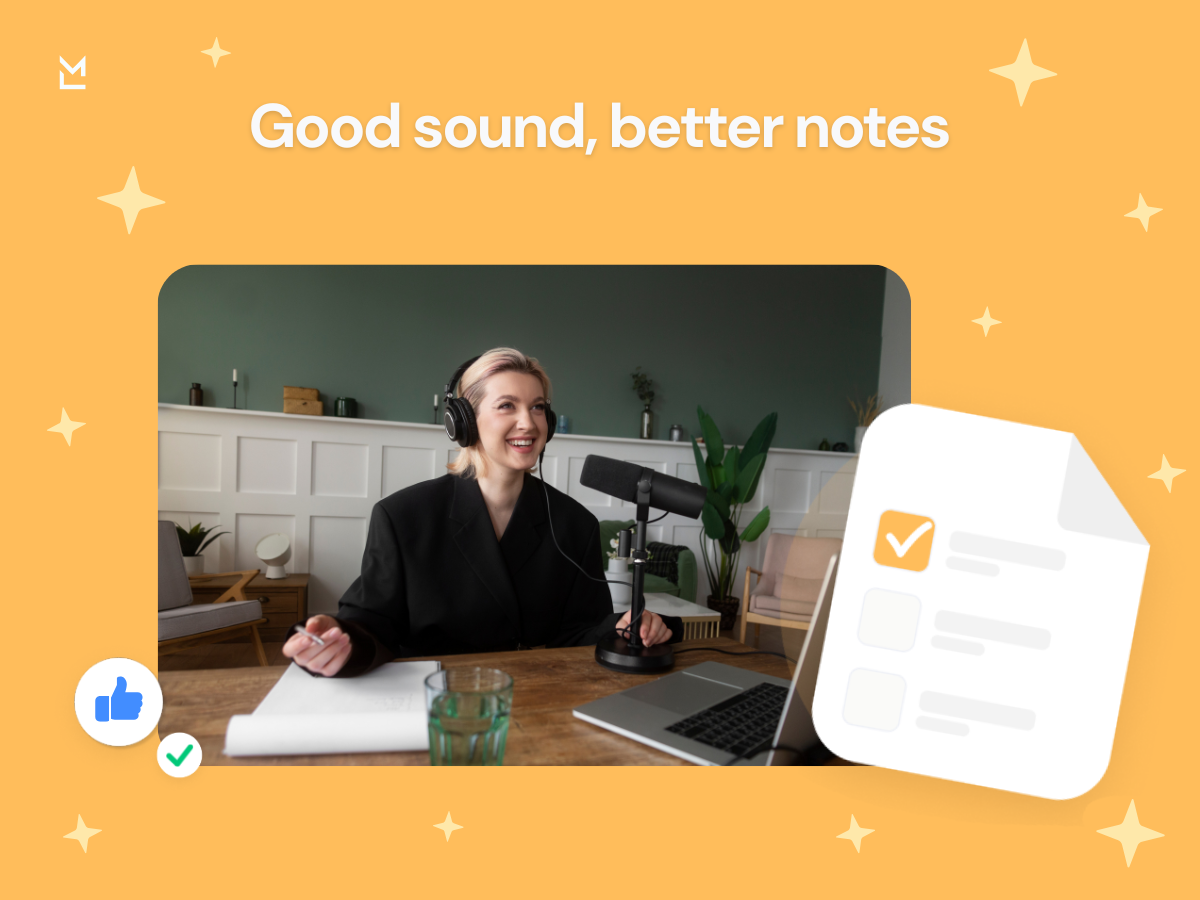
Popular brands like Logitech offer a range of USB A and USB C microphones that are easy to connect and provide reliable sound quality. For example, some Logitech gaming microphones come with a built-in mute button and headphone jack, allowing users to control volume and mute themselves quickly during a meeting or a Twitch stream.
And then there's the matter of mic placement. Even the best gaming mic will sound rubbish if it's too far from the speaker or blocked by something. Using a boom arm or desk stand helps get the mic in the right spot consistently and improves sound quality across recordings. Adding a metal pop filter can further reduce plosives and improve clarity. These little adjustments add up to a big reduction in the amount of time you need to spend clarifying things after the meeting, and a big improvement in the accuracy of your meeting documentation.
Video quality often gets treated as secondary to audio, but it plays a big part in meeting documentation. Clear video helps people follow presentations, pick up on non-verbal cues and understand who's speaking. In Google Meet recordings, poor lighting or a wobbly camera can make meetings really hard to interpret later on, even if the audio is okay. Good lighting doesn't have to break the bank - just positioning the participants to face natural light or using a simple desk lamp can work wonders for facial visibility. And getting the framing right is key too - too much camera movement or awkward angles and you'll lose your viewers and the focus of the meeting.
Google Meet recordings feature high-quality video with resolutions that can reach up to 1080p, depending on various factors. Having clear video not only makes meetings more enjoyable to be in - it also helps afterwards when you're trying to make sense of what was discussed. And it's not just about the meeting itself - video recordings can also be super useful for contextual documentation. When you're reviewing them later, the visual cues can really help you understand what was going on - like whether someone was agreeing or disagreeing, or even if they were just unsure.
For office environments or business settings, integrating Zoom Rooms or other meeting spaces equipped with high-quality displays and conference cameras can further enhance the video conferencing experience. These setups often include professional-grade hardware that supports smooth video and audio, which in turn improves the quality of recordings.
Deciding between headsets and open mics can make a big difference to the quality of your recordings, as well as how comfortable your participants are. Headsets with built-in microphones and a headphone jack are great for reducing background noise and keeping sound levels consistent, making them perfect for remote video meetings. And they help cut down on those annoying echo and feedback problems that can really disrupt your recording.
But for big meeting rooms, headsets just aren't practical - in that case, dedicated room microphones are a better bet. They can pick up sound from multiple speakers at the same time, while still keeping things nice and clear. This is a big help when you're trying to get good documentation of group discussions.
The key is consistency - try to keep everyone on the same page when it comes to using headsets or open laptops, or you might end up with recordings that are all over the place. Setting up a few simple guidelines can help avoid this, and make your recordings a lot easier to use in the future.
The hardware you use can really make or break your recordings. Simple USB connections and compatible audio interfaces are a good place to start. USB mics are super easy to use and most computers will play nice with them. But if you need a bit more control over sound levels or recording quality, you might want to consider more advanced setups with XLR microphones connected via an audio interface. Using an XLR cable and an XLR connection can provide more solid and flexible connectivity options.
Many professional setups combine USB C and USB A connections depending on the hardware and PC compatibility. For example, a USB C microphone can be plugged directly into newer laptops, while USB A remains common for many office PCs. Ensuring your equipment supports the right connection type avoids issues with clip or volume distortion during recordings.
High quality Google Meet recordings only really count for something if your team can somehow turn them into clear, easily digestible documentation. Trying to track back through hours of meetings to find some key decision or to-do item can quickly become a major pain point - especially for teams that are remote or moving at amillion miles an hour.
Rather than leaving it up to memory or to manually scribble down notes, teams can take those Google Meet recordings and turn them into a proper set of meeting notes. We're talking clear summaries, the key points of discussion, and action items that are nice & easy to scan, search and share.
MinutesLink helps out here by taking those Google Meet recordings and spitting out a nicely organised set of meeting notes practically on the spot. No more needing to replay the whole meeting from start to finish just to get a handle on what happened, what decisions were made, and what's got to happen next.
This is particularly useful for any recurring meetings, onboarding new team members, or for any kind of async collaboration - where having a consistent and easily accessible set of docs keeps everyone on the same page.
Quality recordings are a great starting point, but they're only half the battle. Once you've got a top-notch recording, you still need to put in the work to turn that into useful documentation that really serves a purpose.
Rather than sitting through a whole recording, teams do themselves a huge favour by converting that stuff into tidy, structured meeting notes with all the key points, decisions and action items clearly spelled out. That makes follow-ups a whole lot faster, prevents all sorts of miscommunication and ensures everyone stays on the same page - even if someone did miss the meeting.
For remote teams or those that don't all get to sit in the same office, this is actually a way of turning recordings into a valuable long-term knowledge base, rather than just a stack of video files that anyone would probably never get round to watching.
Don't bother settling for the defaults - a couple of quick tweaks will make a big difference to how useful your recordings are when you go back to review them. Here's how to get set up:
Hybrid meetings can be a real challenge when it comes to recording - the in-room participants can easily overpower the remote attendees, leaving you with recordings that are unbalanced and incomplete. But there are a few things you can do to address this.
First, make sure that your in-room participants are speaking clearly towards the mic. And if you're remote, use proper audio equipment to make sure you're being heard. This will help create a nice balance in your recordings, and make sure that everyone's contributions are being captured.
Consider setting up meeting spaces with proper audio and video equipment, including displays that allow remote participants to see and hear clearly. Using Zoom Rooms or similar services can improve the overall experience and recording quality.
Even with high-quality recordings, documentation still needs some serious TLC. What you need is a way to take that raw information and turn it into something structured and useful. That's where tools that integrate recording output into your documentation system come in.
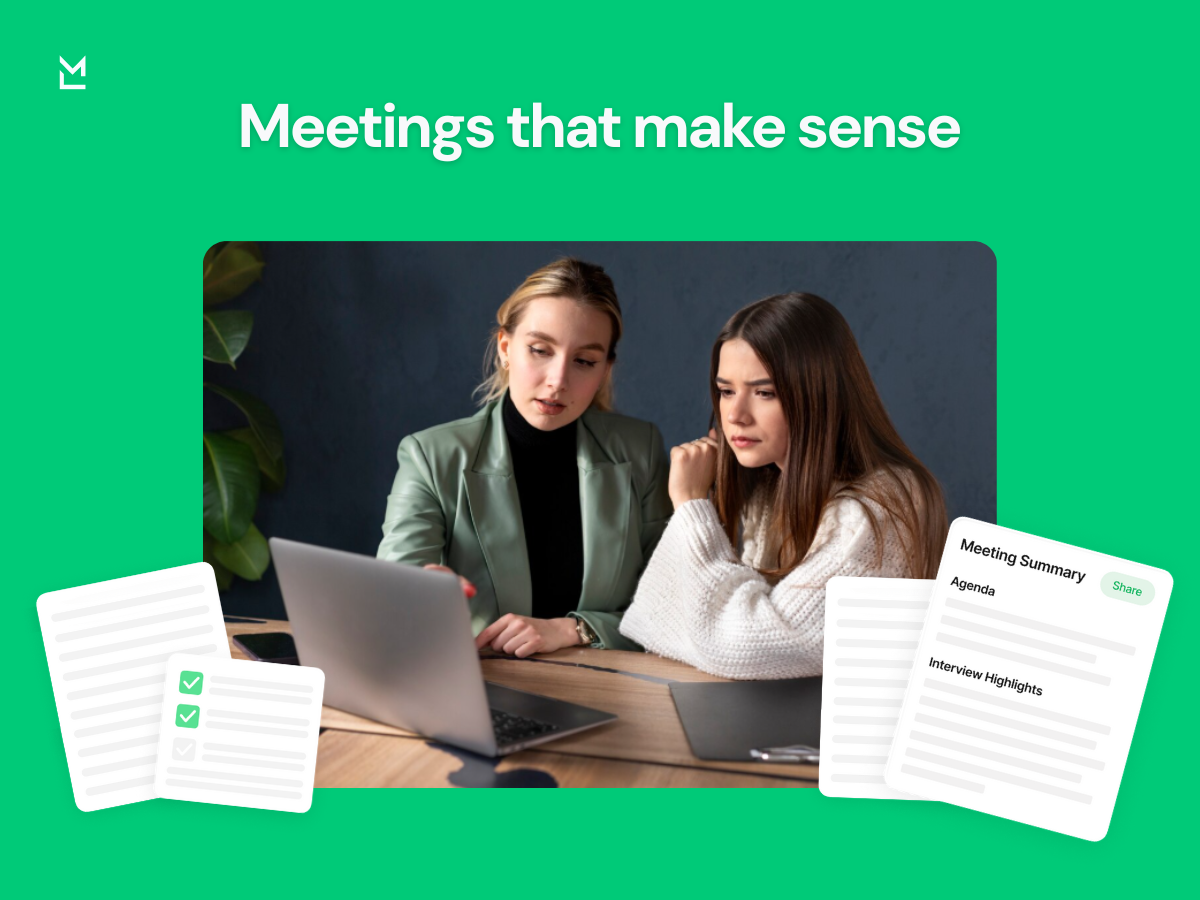
MinutesLink does just that - it takes your Google Meet recordings and turns them into nice, neat meeting notes that are searchable and easy to use. No more relying on memory or snatches of notes - your team can focus on the discussion, safe in the knowledge that it's all being captured accurately.
Improving Google Meet recording isn't about getting everything perfect or splashing out on loads of expensive gear. It's more about understanding how all the different bits fit together - sound, video, hardware and docs. If you just make a few small adjustments to your mic choice, room setup or recording habits, you can make a big difference.
When your recordings are clear and reliable documentation gets easier, trust goes up and teams move faster. Tools like MinutesLink then amplify that by turning recordings into structured knowledge that actually supports real work.
Meetings shouldn't be a huge drain on your time - they should be a foundation for progress, clarity and accountability.
If you want to learn more about optimizing your Google Meet recording setup or need advice on choosing the right equipment, feel free to contact our support team. We're here to help you get the best price and services tailored to your business needs.
It's worth noting that sometimes it feels like it should be instant, but in reality, it can take up to 24 hours for that file to process and show up in your Google Drive. But don't worry, most of the time you'll see it pop up much sooner, and you'll get an email from Google the moment it's ready. If you're itching to get started on that documentation, just be patient - it's working in the background!
A top-notch meeting room is more than just a table and chairs - it's all about creating an environment where people can focus on the conversation. First off, pick a space that's got minimal echo (rugs and curtains really help with that). Then you need a central hub for your tech, whether that's a dedicated computer or a Google Meet hardware kit, and a display that's big enough to make remote participants feel like they're part of the room. And the goal is to make the tech invisible, so the conversation can take centre stage.
Well, the best mic is really going to depend on where you're recording from. If you're in a quiet home office, a condenser mic like a Blue Yeti will make your voice sound like a million bucks. But if you're in a noisy office, you'll be better off with a dynamic microphone - it's way better at ignoring background chatter and focusing on what you're actually saying. For most people, a USB connection is a good place to start, at least for the plug-and-play ease.
There's a lot more to remote work than just the basics of Slack or Teams. The really useful tools are the ones that help cut down on meeting fatigue - like Google Meet for video calls, a project management tool like Notion or Asana, and a way to capture knowledge without having to take notes by hand. That's why we built MinutesLink: to turn all those hours of video into something useful and actionable.
You don't need a fancy movie studio - but there are a few things that are pretty non-negotiable:
Trusted & Secure


.webp)


.webp)
.webp)
.webp)
%201%20(2).jpg)